
Dashboard
The ExamIQ Dashboard provides a centralized view of key metrics, analytics, and tools for managing exam data efficiently. It enables users to monitor candidate performance, track exam statistics, and access various psychometric analysis features.
Key Features:
- Exam Performance Insights: View detailed analytics on candidate performance, including pass rates, score distributions, and statistical trends.
- Data Visualization: Graphs and charts for quick interpretation of key psychometric metrics.
- Item Analysis: Evaluate question difficulty, discrimination index, and other psychometric properties.
- Test Reliability & Validity Checks: Assess consistency and accuracy of exam content.
- User-Friendly Navigation: Easily switch between sections for data review, analysis, and report generation.
This dashboard serves as the primary interface for psychometricians and administrators to analyze and optimize test performance.
View and Manage Dashboard
The dashboard serves as the central hub for accessing key psychometric data and analytics.
- Click ExamIQ from the left side menu to access the ExamIQ in a new browser tab.
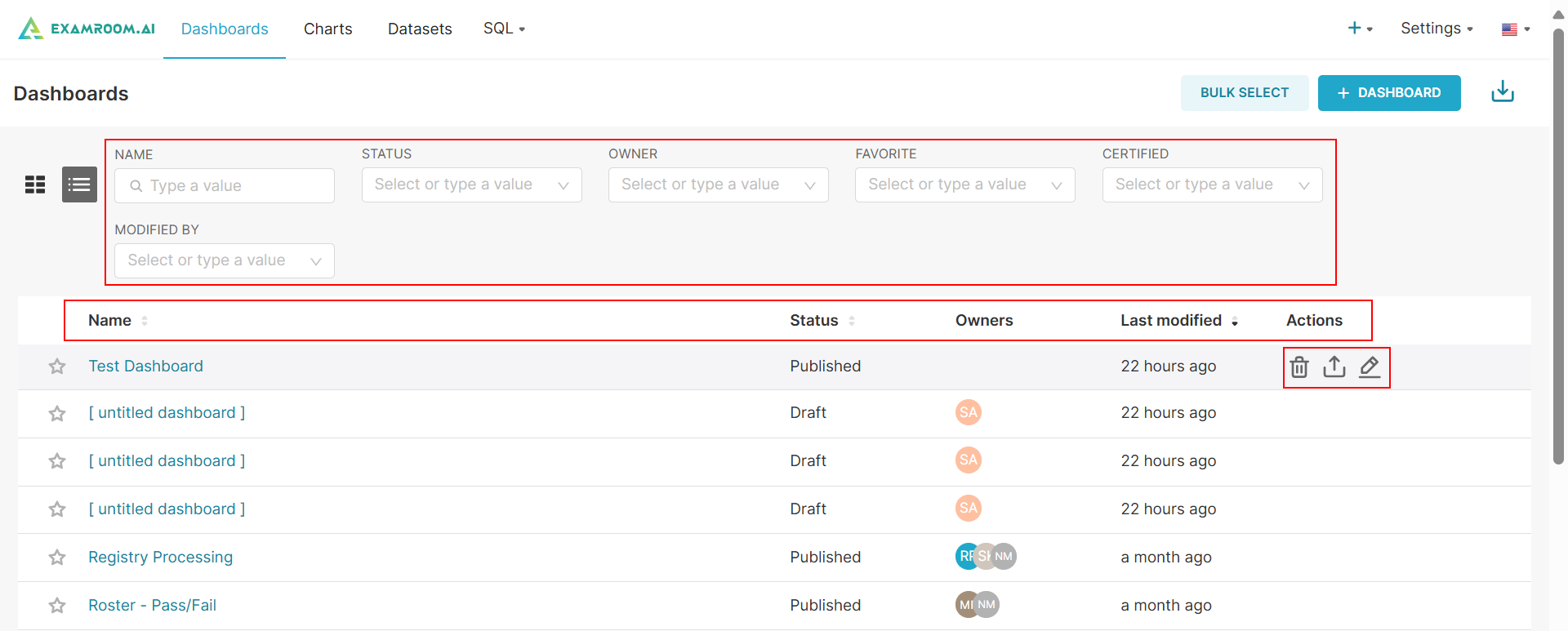
- On the ExamIQ dashboard, all the created dashboards and workspaces are displayed in a tabular format that includes the following details:
- Name: Displays the title of the project or workspace.
- Status: Indicates the current state (e.g., Active, In Progress, Completed, or Archived).
- Owners: Lists the individuals or teams responsible for managing the workspace.
- Last Modified: Shows the most recent update timestamp, reflecting the latest changes made to the project.
- Action: Take action on the created workspace
- Delete: Remove an existing workspace.
- Export: Export workspace data for external analysis to CSV.
- Edit: Modify workspace details and configurations.
Filter and Search Option
To locate a specific dashboard or workspace from the list, use the filter options to refine your search:
- Apply Filters: Search by criteria such as Name, Status, Owner, Favorite, Certified, and Last Modified By.
- Remove Filters: To display the complete list of dashboards and workspaces, clear any applied filters.
- Refine Search: Select a specific category to narrow down the results and quickly find the desired dashboard or workspace.

Tool Bar
The dashboard toolbar provides key options for managing and organizing workspaces efficiently. It includes the following functions:
- Bulk Select: Allows users to select multiple workspaces at once to perform batch actions, such as deleting or exporting multiple items simultaneously.
- +Dashboard: Enables users to create a new dashboard by adding a workspace with customized settings and configurations.
- Import Dashboards: Provides an option to import an existing dashboard from another source or file. This is useful for users who wish to load pre-configured dashboards into the platform without having to recreate them manually.
These options help streamline workspace management and improve usability within the system.
