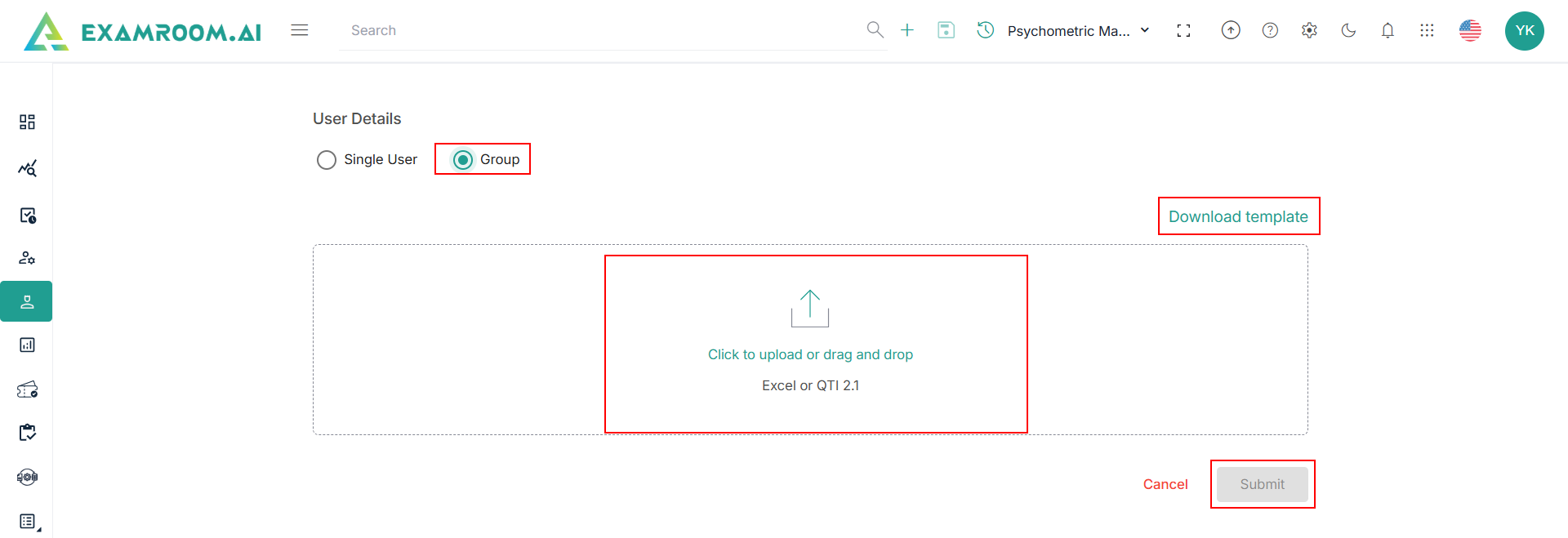
Invite Users
The Invited Users tab displays the list of users invited in the console.
Single User
To invite a single user, follow the steps below:
- On the User List page, click the Invite User tab and click Invite User.
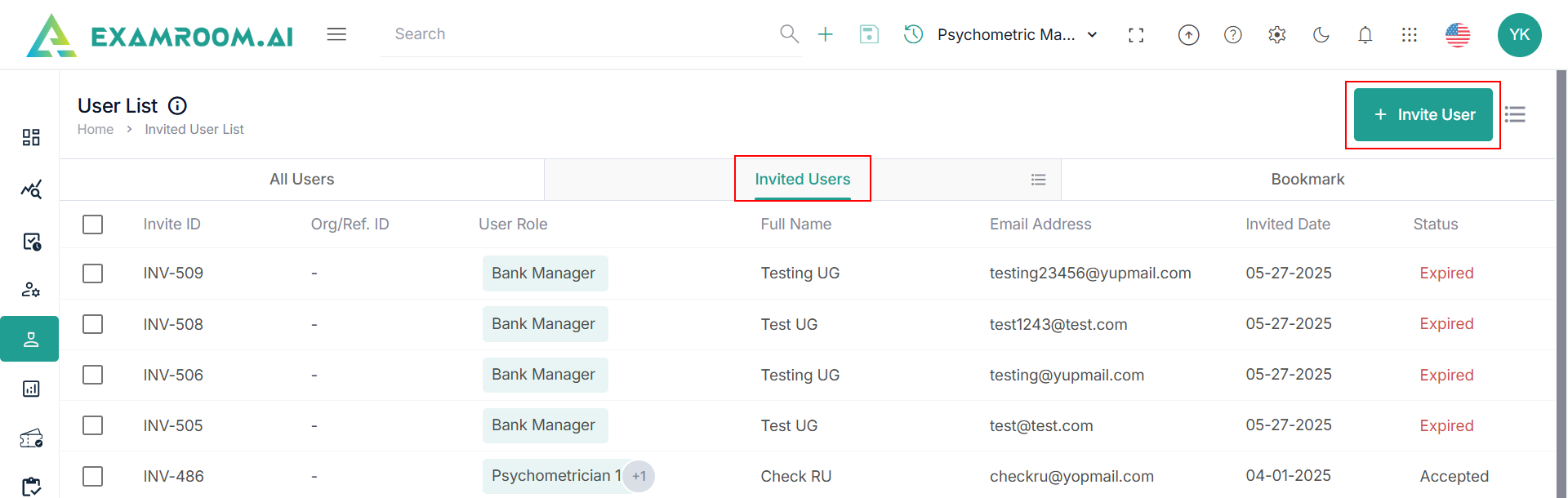
- Select Single User.
- Enter the First Name, Last Name, Email Address, and Org/Ref.ID.
- Select the Assign Role from the dropdown list.
- Click
Calendar to select the Start Date and End Date.
Note: The invited user will be active from the selected start date to the end date. - Click Send Invite to send the invite to the user. Otherwise, click Cancel to exit without saving.
Group User
To invite multiple users to the console, follow the steps below:
- On the User List page, click the Invite User tab and click the Invite User.
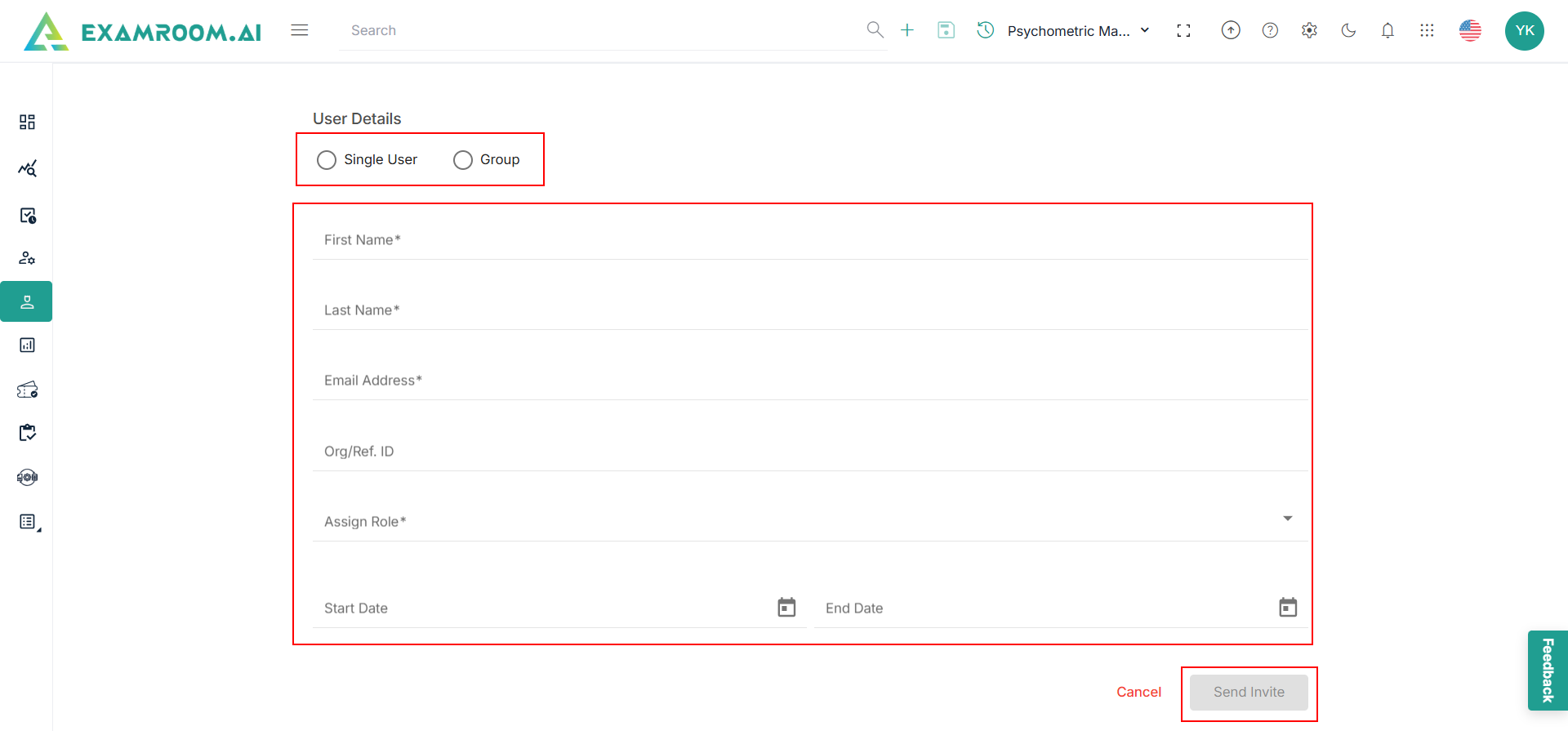
- Select Group to invite multiple users at once.
- Click Download Template to download the group invite template.
- In the downloaded Excel template, enter the Email ID, Org/Ref ID, First Name, Last Name, Assign Role, Start Date, and End Date.
Note:- The invited user will be active from the selected start date to the end date.
- Use the Role sheet to look up role titles. To add the multiple roles, use commas to separate them in the Assign Role Column.
- Save the Excel sheet to your computer.
- Upload the saved Excel file following either one of the options below:
- Drag and drop the Excel file into the box.
- Click in the box to open and select the Excel file from your computer.
- After uploading the Excel file, click Submit to invite the bulk users to the console. Otherwise, click Cancel to exit without saving.